The Web:
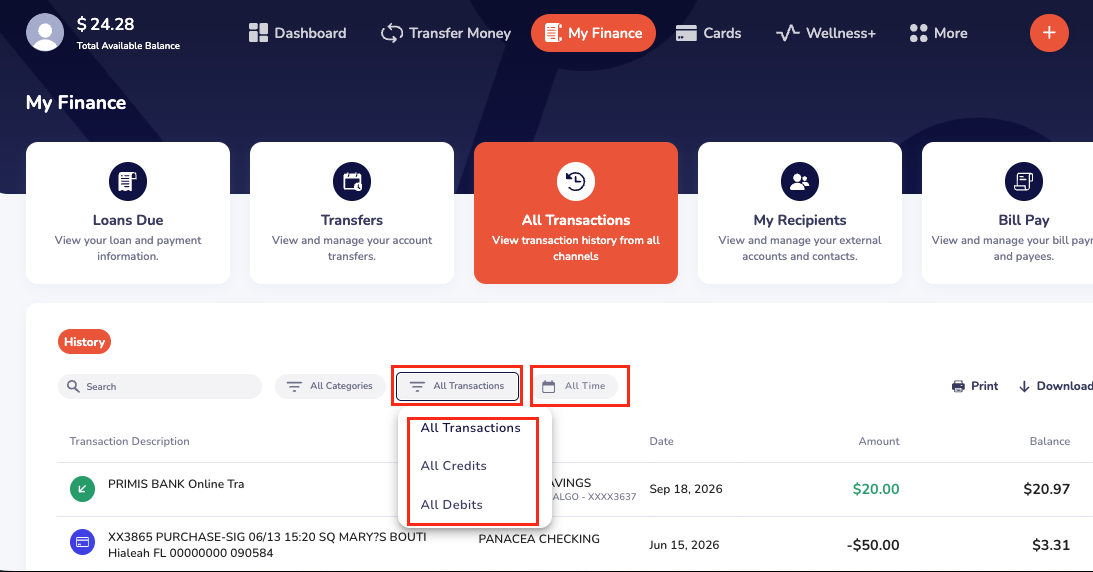
Click on the account view. On the next screen scroll down to see all of your transactions, you can search for a specific transaction amount, filter by category, date, or date range. (To view the history across all accounts, click My Finance > All Transactions)
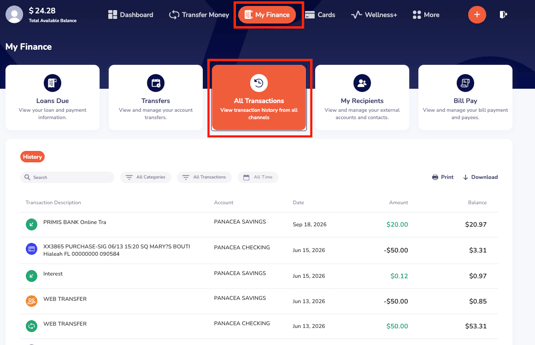
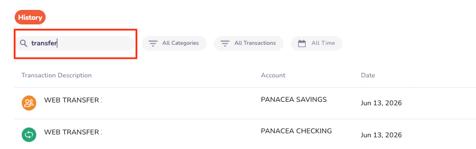
You can search for a transaction in the search bar by Merchant, Amount or a key word.
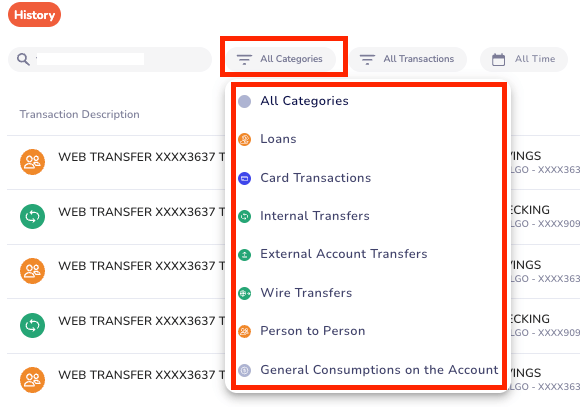
You can filter by Categories: Loans, Card Transactions, Internal Transfers, External Account Transfers, Wire Transfers, Person to Person, General Consumptions on the Account. To filter by transaction category click All Categories.
You can also filter by All Debits, All Credits and Date. To filter by transaction type, click All Transactions, to filter by Date click on All Time.
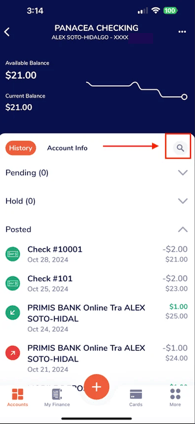
The App:
Click on the desired account to see all transactions. Click on the magnifying glass to search for a specific transaction. You can search by amount or merchant name.