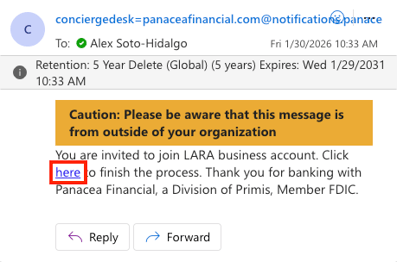
When a business owner, sends a business invite to their account, you will receive an email from conciergedesk@panaceafinancial.com with the subject "Account Invitation".
Click on the blue link that says "here" to start.
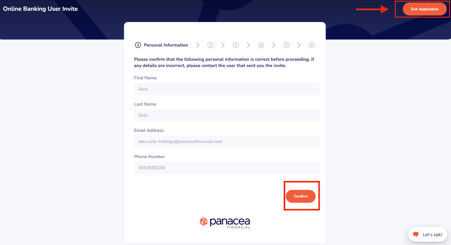
In the Online Banking User Invite screen, you will see your First Name, Last Name, Email Address and Phone Number pre-filled. If everything looks correct, click Confirm.
If the information is incorrect, click Exit Application, and reach out to the business owner so that they can edit the details and resend the application.
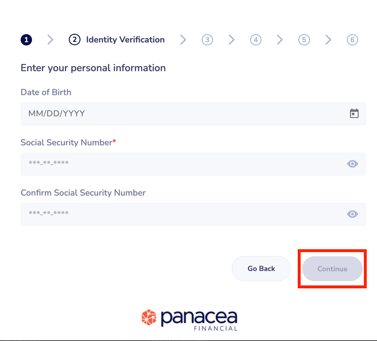
Next, proceed to enter your Date of Birth, SSN, and confirm the SSN. Click "Continue".
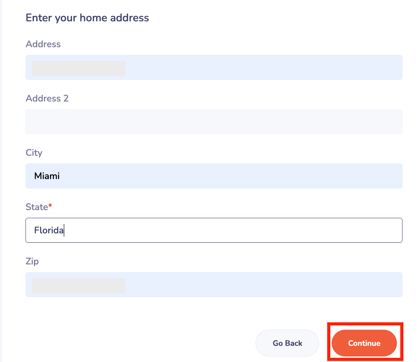
Enter you home address information. Click "Continue".
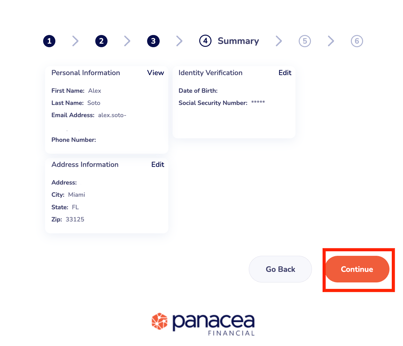
Verify all the details are correct, and click "Continue".
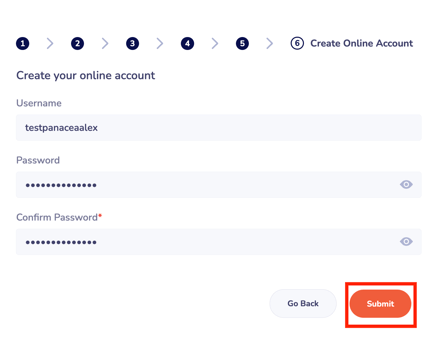
Create an username and a password. Click Submit.
To see our username and password requirements click here.
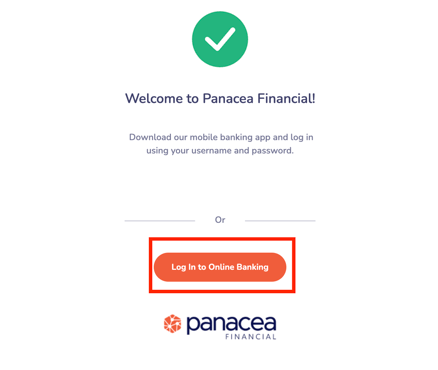
You will receive a success message. To log in, simply click "Log In to Online Banking" or go to www.digitalpanaceafinancial.com.